Friday, June 12, 2015

How to do Deploying and Scheduling in Talend !!

This post will help you to schedule the Talend jobs in case if you are not using Enterprise edition of Talend, because  enterprise Talend comes with TAC (Talend Administration Center) where you can schedule the job easily.

Below steps are to schedule the job if you using Open Source Talend. To schedule the job follow the below steps and at the end of this post you should be able to schedule the talend job.

1.Right-click on the job and select the option Build Job.


2.Click on Browse to navigate to the folder .

3.Ensure the Export type is Autonomous Job, and tick Extract the zip file.

4. In the options tick Shell launcher and Context Scripts.

The Shell launchers option allows you to specify if you want to create shell launch scripts. These are Unix and Windows style scripts for launching your Job. You may choose the style of scripts that you want to export.

If you select the Context scripts option, then Talend will export scripts for each of the Context that you have defined in your Job.
.
5. Click on Finish to compile the job.


6.Navigate to the compiledCode folder, and you will see a zip file and a directory for the compiled job.

Executing the job

Open a command window within Windows or a shell window in Unix.
.bat is for windows and .sh is for UNIX. Here I am executing the job in windows.

Enter the command “<jobName>_run.bat”. The job shown here is how_to_use_tjava_component, thus  how_to_use_tjava_component_run.bat.
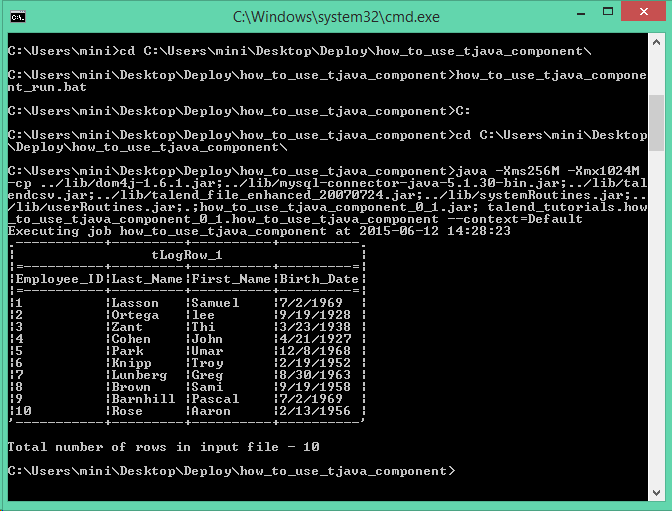


Now if you want to Schedule your Talend job daily ,weakly etc.Follow the Steps:--
Go to the Control Panel Settings in your system under Administrative Tools > Task Scheduler.

Click Create Basic Task on right side of screen.

 Write the Name and Description of the task.

 Then select how often you want to run your task . Then click Next button.

 Above you have selected daily option so task will occur every day.

 Select Start a program in Action Field.Click on Next button.

 Browse to the location of the batch file.Click on Next button.

 Here the Summary of your task is shown.Click on Finish button.

Tuesday, June 2, 2015

How to Download Files From FTP Server Using Talend !!

In this post I will show you how to extract files or get files from FTP server using Talend.
In the given scenario we assume that we don’t know the exact names of the files to be downloaded from the remote location and we just know the extensions type and the path of the incoming files .

As an ETL developer we know most of the time data comes in multiple format through FTP and we need to process the data to keep the business running. In this post will try to give an idea how we can process the data to achieve our desired data. I will be showing how to get the file from FTP and UnArchive the file. Once Archived file is available you can push that data into the database as per you required business rules.

Drag and drop the following component from the palette :-
tFTPConnection , tFTPGet , tFileList , tFileUnarchive.
Connect each component as shown in the screenshot below.


tFTPConnection creates a connection to your FTP server.
Open the component properties of tFTPConnection and fill the Host name , Port , Username and Password field.


You can also create the FTP connection under MetaData repository

Open the component properties of tFileGet and fill the Local Directory path where you want to copy the files and remember it should always be in double quotes "".
And fill the path of incoming files in the Remote Directory .
In the Files list using Filemask specify all the types of files you want to retrieve from the remote server by clicking + button.


In the tFileList component fill the Directory path and Filemask of the files same as you gave in the tFileGet component local directory path and filemask.


Now tFileList component is connected with Iterate link to tFileUnarchive component so that all the files one by one get archive.

Open the component properties of tFileUnarchive.
In the Archive File field provide the path of the tFileList.
((String)globalMap.get("tFileList_1_CURRENT_FILEPATH"))

Or you can press ctrl + space key and select tFileList_1_CURRENT_FILEPATH.


Atlast when you Run the job all the files get retrieved in your local directory which you have given with mentioned extensions.